
Block out time in the diary
Use an unavailable or system booking when you need to hold time in the diary without a client appointment. Examples include an afternoon off, a one-off holiday, training, or travel between sites.
When to use this instead of working hours
- Same lunch break or shorter day every week: use Set groomer working hours and Add Gap, or edit start and finish times.
- One-off or irregular time off (this afternoon, a single bank holiday, an emergency): use an unavailable / system booking (this guide).
Groomer working hours control which times Barkway offers for new bookings and client requests. They do not replace diary blocks for one-off time off.
Block out the time
- From Dashboard or Bookings, choose New Booking.
- In Who, leave the pet search blank. Barkway treats this as an unavailable / system booking.
- Choose the groomer who is away or busy.
- Pick the start time and set the duration for how long the block should last. You do not need to choose a core service or add-ons.
- Choose Create Booking.
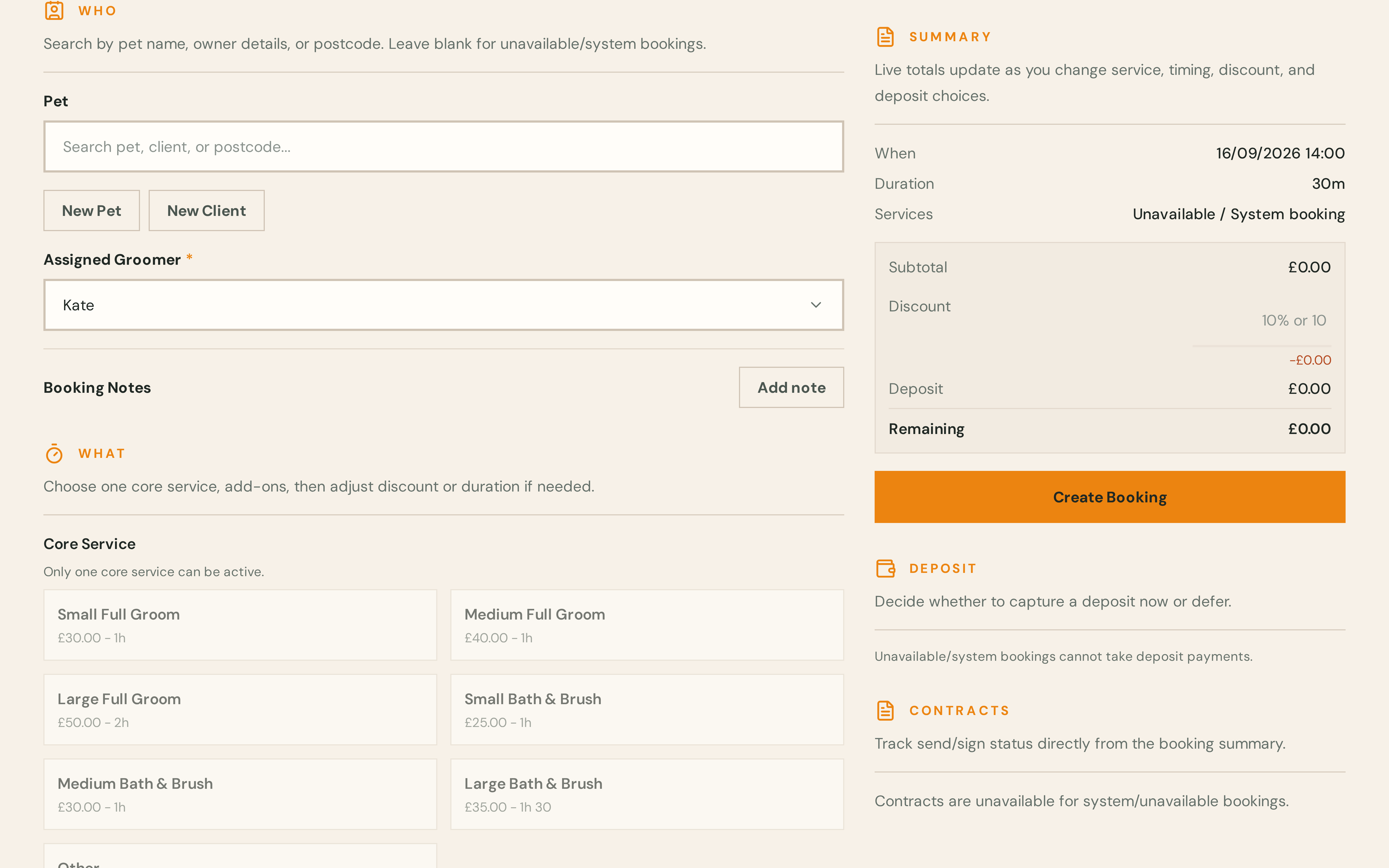
The appointment appears in the diary as Unavailable. The booking summary shows Unavailable / System booking.
What Barkway does not create
Unavailable / system bookings are diary blocks only. Barkway does not:
- Create a client invoice
- Take or record a deposit (Take a deposit)
- Attach booking contracts (Manage contracts)
- Send client booking confirmations or reminders
Change or remove a block
Open the booking from the calendar and use View or edit a booking to change the time, duration or groomer. Cancel the booking if you no longer need the block.
How this differs from Slot unavailable on a request
Slot unavailable is a booking request outcome when a client could not finish a portal request before acceptance. It is not a diary block. See When a request shows Slot unavailable.