
What clients see
Returning clients sign in to the portal with a one-time email link, with no password. New clients can use your public booking request link: Barkway verifies their email and signs them into the portal as part of the request journey, without a separate account-creation step.
The portal covers these areas. What a client can do depends on your portal and service settings.
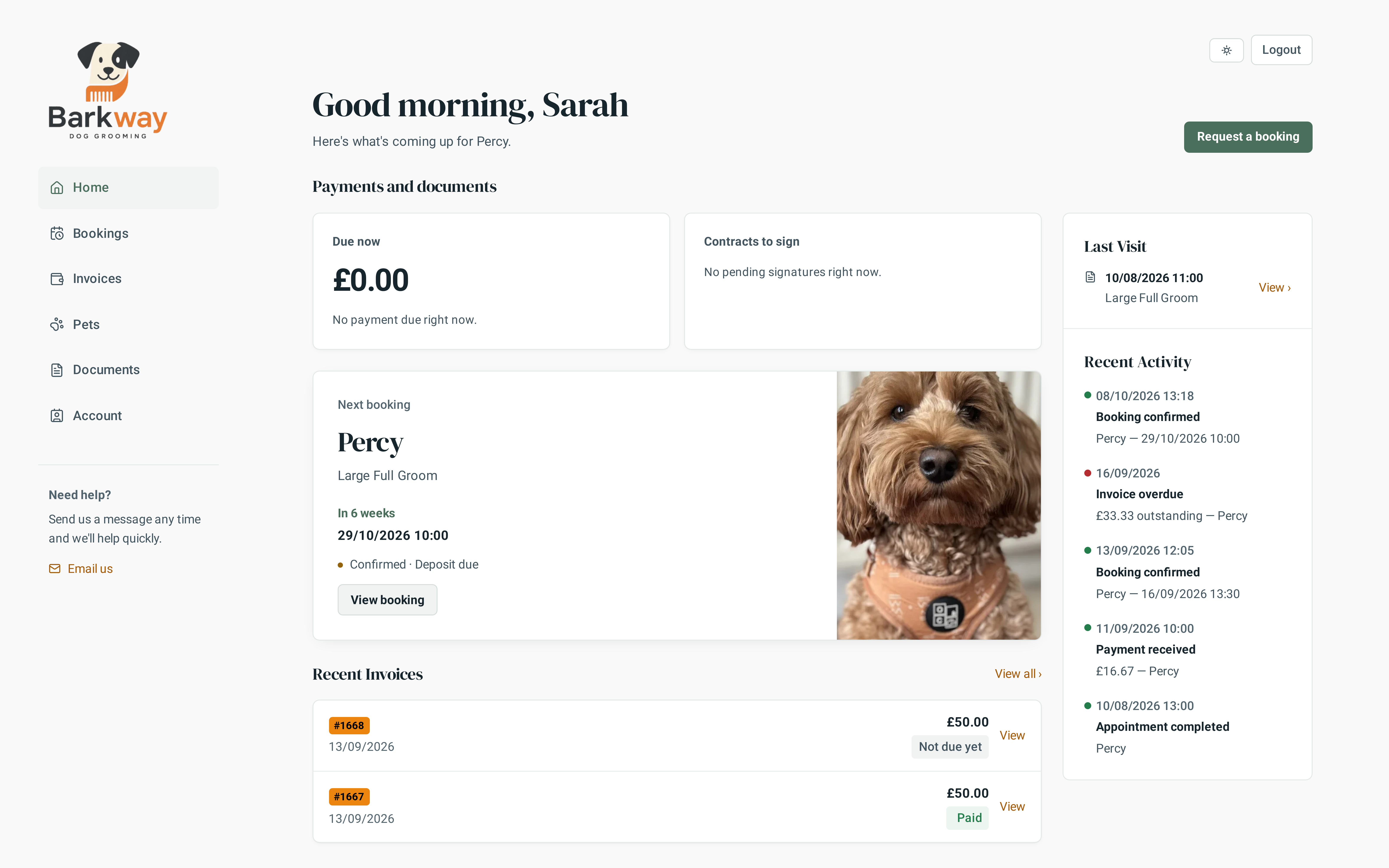
Dashboard
The portal home gives clients a snapshot of what needs attention: outstanding balance, unpaid invoice count, upcoming bookings, documents to sign, and pending booking requests.
Bookings
Clients can view their booking timeline and open booking details, including service and status. Clients can cancel a Scheduled booking from its details when it starts more than 24 hours later; closer to the appointment, the portal asks them to contact you. Statuses they may see: Scheduled, In progress, Completed, Cancelled.
Booking requests
Clients choose a pet, one core service and optional add-ons, an available time and, where offered, a groomer. If an upfront deposit is required, they pay before the request is submitted for staff review. Public clients first verify their email; returning clients using the public form also confirm which existing pet to use or deliberately add a new one.
Successful submission opens My booking requests, which explains that the groomer must review the request before confirming the appointment. Email verification and deposit payment do not mean the appointment has been accepted. The public form's temporary hold lasts 30 minutes from submission; it is not the pending request's review period.
Clients can continue saved unfinished requests, check submitted requests and cancel pending requests. My booking requests shows the current outcome, including acceptance, rejection, cancellation, expiry and when a time could not be kept before you reviewed it. If they paid a request deposit and the slot became unavailable, the portal explains that the appointment was not confirmed and that a full refund has started or completed. Accepted requests lead to a confirmed booking. The pending-request expiry period is controlled by Booking request expiry in portal settings.
See Public booking requests for verification, expired holds and resumed requests, or Deposits and saved cards for payment and refund behaviour.
Pets
Clients can view pet profiles, add new pets, edit existing details, and search/select breeds. Some fields may be required depending on your business settings. Keeping pet records fresh improves booking accuracy and reduces back-and-forth before appointments.
Invoices
Clients can view their invoice list, open invoice details, see status, and download PDFs. If you have enabled portal card payments, eligible unpaid invoices also let them pay the deposit, full amount or remaining balance by card. They review the booking terms before paying.
Documents (contracts)
Booking contracts appear as Documents in the portal, with indicators for outstanding signatures. All eligible default contracts attach when staff create a booking or accept a request. Clients can open each document from Documents or the booking details, read it, enter their name, confirm consent and sign. Signed PDFs are available to download when ready.
Each document has its own status and signature. Unsigned documents do not block request submission, payment or appointment confirmation. Staff manage templates and signing status through Manage contracts.
Account profile
Clients can update basic contact details and request an email change:
- Client requests an email change.
- Barkway sends a verification link.
- Client confirms from that link.
Until verification completes, the old login address stays active. Security actions (like revoked sessions) may require the client to sign in again with a fresh magic link.
If you allow saved cards, clients can separately authorise a card under Account → Payment methods and remove that permission later. Saving a card does not itself accept the payment terms for a particular booking.
Login and security notes
- Login responses are generic, to avoid exposing whether an email exists.
- Magic links expire after a configured time; used, expired, or invalid links can't be reused.
- If staff revoke sessions, the client needs a fresh login link. If staff disable portal access, access must be enabled again before the client can sign in.