
Set up card payments
Connect your business's Stripe account to let clients pay eligible booking invoices by card in the client portal. Clients pay your business directly. Stripe charges its processing fees to your account; Barkway takes no transaction fee.
Before you start
- Enable the client portal in Settings → Portal so clients can sign in.
- Check your Business Country in Settings → Payments. This is used for your Stripe payment setup.
- Have a Stripe account for your business, or be ready to create one with Stripe. This connection is separate from the card used to pay for your Barkway subscription.
Connect Stripe
- Open Settings → Payments and find Card Payments.
- Select Link existing Stripe account. If you do not have an account yet, create one directly with Stripe, then return and link it. Barkway never asks for your Stripe password.
- Complete any setup or verification Stripe requests. Return to Settings → Payments and check the Stripe Connect status. Use Open Stripe if requirements still need attention.
You can turn on portal collection when Stripe is ready to accept cards. A Setup needed, Verification pending, or Restricted status means Stripe still needs attention before collection can start.
Turn on portal payments
- In Card Payments → Client payment policy, turn on Offer card payments in the client portal.
- Review Refund the deposit for early cancellations and write your Booking terms. Clients review the current terms before paying. For more detailed terms, use Booking Contracts.
- If you want clients to save a card for later, turn on Allow customers to save a card for later. This is optional. Each client must separately authorise ongoing card use; creating a booking does not grant that permission.
- Save your payment settings.
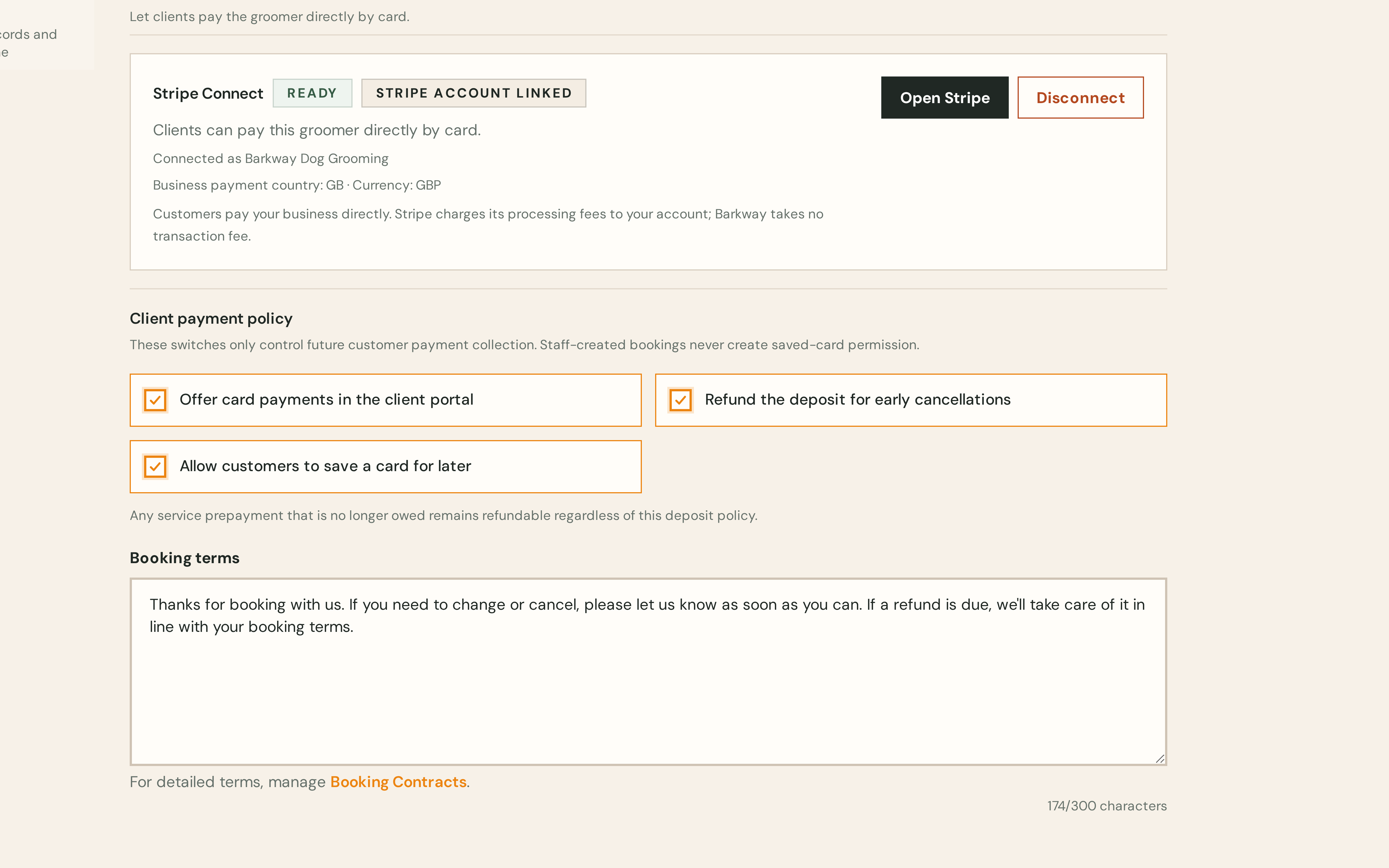
The portal must also remain enabled. Turning off portal collection stops new card payments without removing existing payment records.
Check the client experience
Use a client record with an email address you can access and a booking with an eligible, unpaid invoice. Sign in to the client portal and open the booking or invoice. Depending on what remains due, the client may see Pay deposit, Pay in full, or Pay balance. Barkway shows the available amounts; the client reviews the booking terms and completes the card payment securely through Stripe.
The invoice and payment history update when the payment is confirmed. If you enabled saved cards, clients can manage their card permission from their portal profile. Do not record a portal card payment manually as well.
Protect an agreed deposit after a no-show
An authorised saved card can help you collect an unpaid, agreed deposit if a client does not attend or cancels under your deposit policy. Set a required deposit and make your late-cancellation and no-show terms clear before the client accepts them. See Take a deposit for the deposit setting.
Two separate client actions are needed: they must accept that booking's payment terms when starting a portal payment, and they must authorise a saved card for your business. They can save a card during checkout or under Account → Payment methods in the portal. A portal booking request alone does not provide either permission. A staff-created booking can qualify once the client completes both actions.
After marking the booking as a no-show or recording an eligible cancellation, an admin can open Financials on the booking, choose Charge saved card, select the eligible deposit amount and enter an audit reason. Barkway submits the charge to Stripe without asking the client to approve it again in the usual case. If Stripe requires authentication, Barkway notifies the client to confirm the charge in their portal. The card may also be declined, so check payment history for the final status.
The amount is capped at the unpaid deposit still due under the accepted terms. If the deposit has already been paid, there is no additional no-show charge. Card collection and the client's saved-card permission must still be active.
If a payment option is missing
- Stripe is not ready — open Settings → Payments and complete any Stripe requirements shown there.
- Collection is paused — turn Offer card payments in the client portal back on and save.
- The client cannot reach the portal — check the global portal setting and that the client's email address matches their record.
- The invoice has no payable option — check that it belongs to the client and still has an amount due. Payment choices depend on the booking and its current invoice.
- A payment is still processing — check its status before asking the client to try again.
For payments received outside the portal, see Record a payment. For returning a card payment, see Refund a payment.