
Set groomer working hours
Groomers and admins can set weekly working hours, including gaps for lunch or other breaks. New staff bookings and client booking requests are only offered while that groomer is working.
Anyone who has not set their own hours follows your business opening hours in Settings → Business, the same as before.
Where to set working hours
- Your own hours: open the user menu, choose Profile, then edit Working hours (admins and groomers).
- A team member's hours: Settings → Users, open the user, then edit Working hours above the danger zone. The page's Save button saves profile details and working hours together.
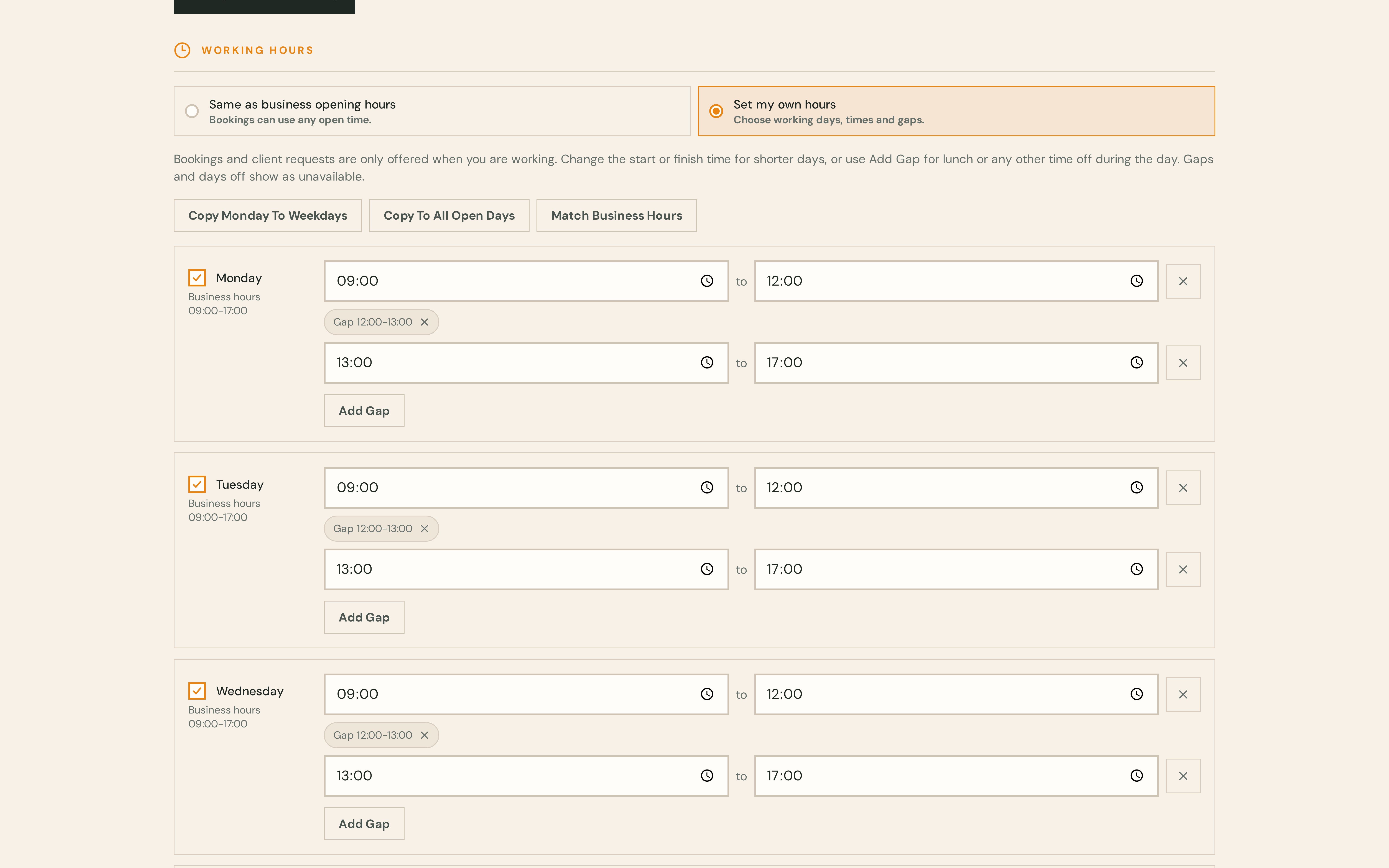
The editor looks the same in both places. This example shows Set my own hours with a lunch gap on a weekday:
Same as business or custom hours
In the editor, choose one of:
- Same as business opening hours — bookings can use any time the business is open for that groomer.
- Set my own hours / Set custom hours — choose working days, start and finish times, and gaps.
Business opening hours are shown on each day row. You cannot work on a day the business is closed.
Shorter days, split shifts, and gaps
- Shorter day or early finish: edit the period start or end time for that day.
- Day off: turn off the day checkbox or clear all periods for that day.
- Lunch or a break during the day: choose Add Gap. Barkway splits a period and shows a removable Gap chip between working periods.
- Presets: Copy Monday To Weekdays, Copy To All Open Days, or Match Business Hours to fill the week faster.
You can add up to three gaps per day (four working periods). Times use five-minute steps; each period must be at least fifteen minutes.
What staff and clients see
- New booking availability: cells outside working hours show Off with a not-working label in the full form.
- Smart Scheduler: suggests times inside the groomer's working windows when custom hours are set, as well as opening hours, buffers and the rest of the diary.
- Client portal: available times and groomer choice respect each groomer's hours when they use custom hours. Any groomer options only include times when at least one groomer is working.
Saving when something is already booked
If your changes would leave future scheduled bookings or pending booking requests outside the new hours on the days you changed, Barkway asks you to confirm before saving. Nothing is moved or cancelled automatically.
You cannot save a custom week with no working time at all for that person, because they could never be booked. To take someone out of rotation for longer, mark them inactive under Settings → Users instead.
When business opening hours change
Saving business opening hours does not change anyone's saved working hours. If someone's periods now fall partly outside the new opening hours, Barkway warns how many team members are affected when you save business settings. Only the overlap with opening hours can be booked until they adjust their hours. Their editor flags affected days.
When to block time in the diary instead
Use Block out time in the diary for irregular time off. Use working hours and Add Gap for a regular weekly lunch or recurring shorter day.
Related setup
- Set up your business profile for business-wide opening hours.
- Invite your team for roles and user access.
- Public booking requests for what clients can request online.